
Office 2016 Retail Single Use
Installation File
Quicksteps
- Before installing the new Office package, please uninstall all old Office versions from your computer. You can find and uninstall these in the settings under Apps. If necessary, download the Microsoft Tool for Simple Bug Fixes to make sure that all old Office versions are completely uninstalled. Here Microsoft gives a detailed guide on how to uninstall all old Office versions. This is especially important if you’ve used a Microsoft 365 before.
- Follow the link above and download the Office package.
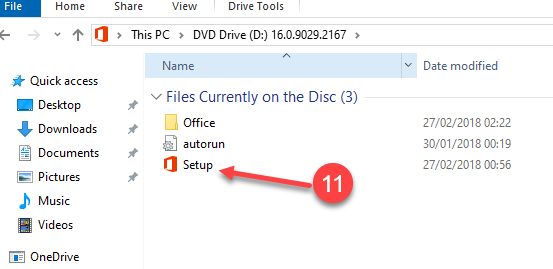
- After that, you can start the file with a double click. Once Windows opens the file, double click on Setup to start the installation.
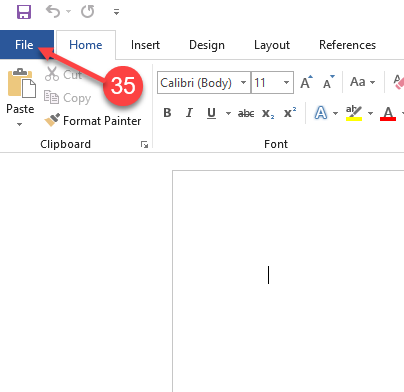
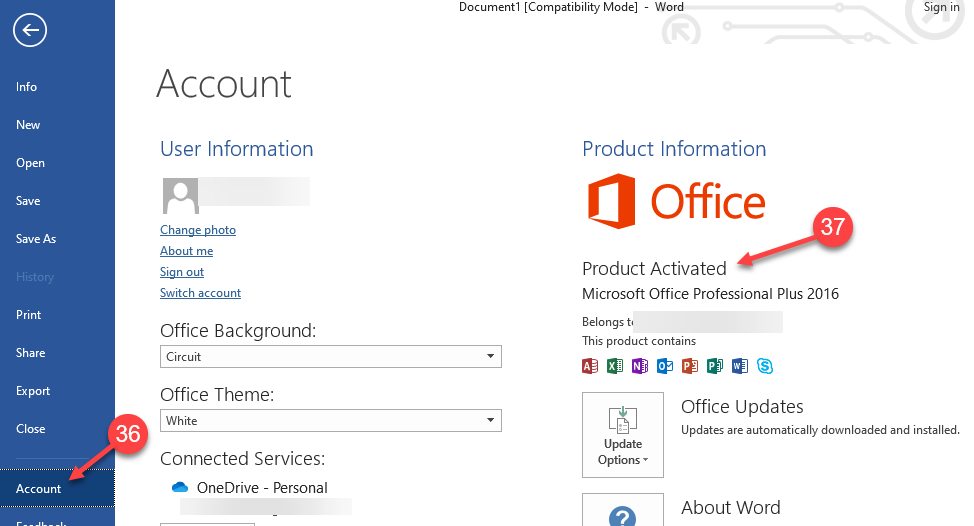
- After the installation has been completed and you have verified it, you can enter the key. To do this, open Word and click on “File” in the upper left corner. Here you will find the sub-item “Account”. There you will find on the right side of the now opened menu “Enter product key” or “Change license”.
Detailed Walkthrough
Uninstalling Older Office versions
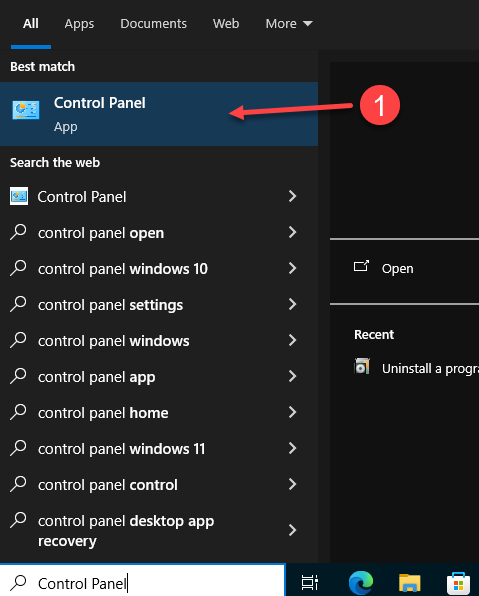
1. In the Windows search bar, type Control Panel and select it.
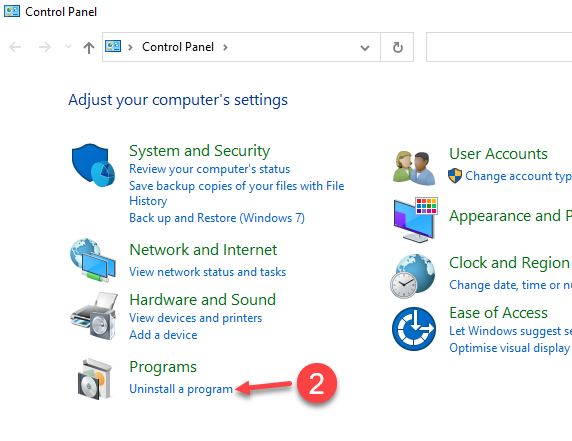
2. Go to Programs and click Uninstall a program to remove any previous versions of Microsoft Office.
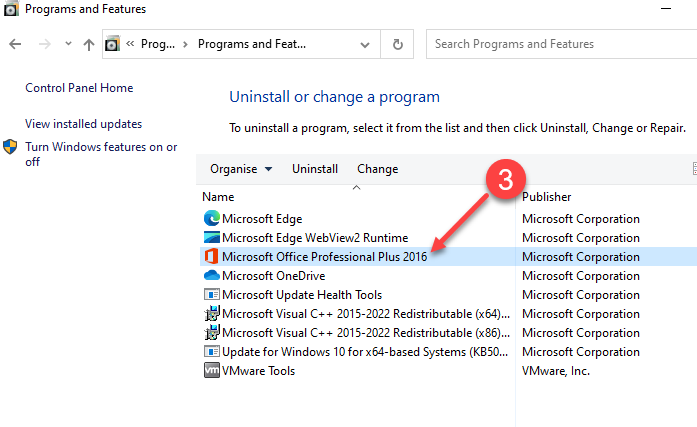
3. Click on the Office version, and then click on Uninstall
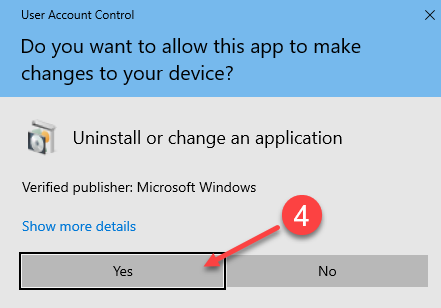
4. On the User Account Control Popup click Yes to answer “Do you want to allow this app to make changes to your device”
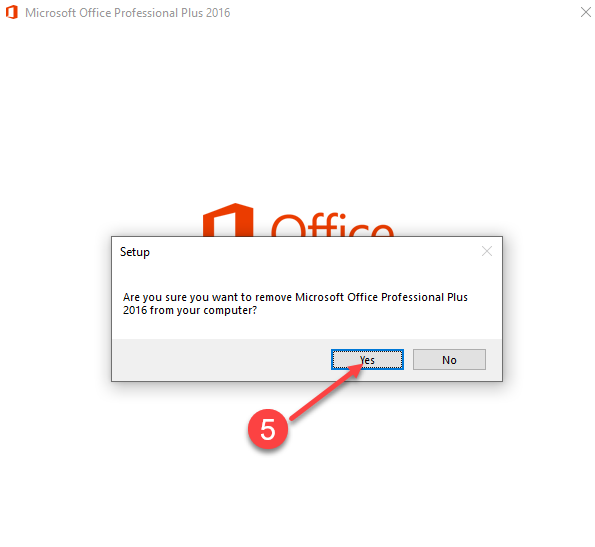
5. Click Yes
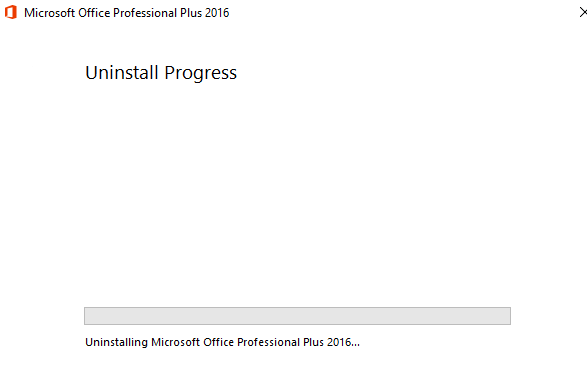
6. Waiting Uninstall Progress
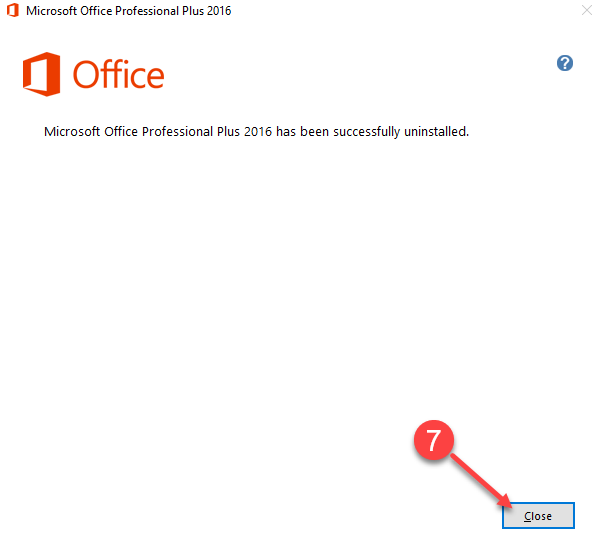
7. Click Close
Download Microsoft Office Installer
Download your office package from the link above.
8. Click the Yellow Button to start downloading Microsoft Office installer.
9. In your downloads folder, find the downloaded installer and double click the file.
10. Then double click on setup file
11. Click Yes on the following pop up
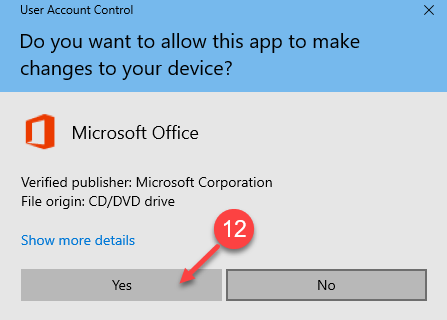
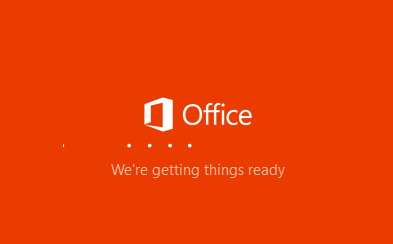
12. Wait for a couple of minutes
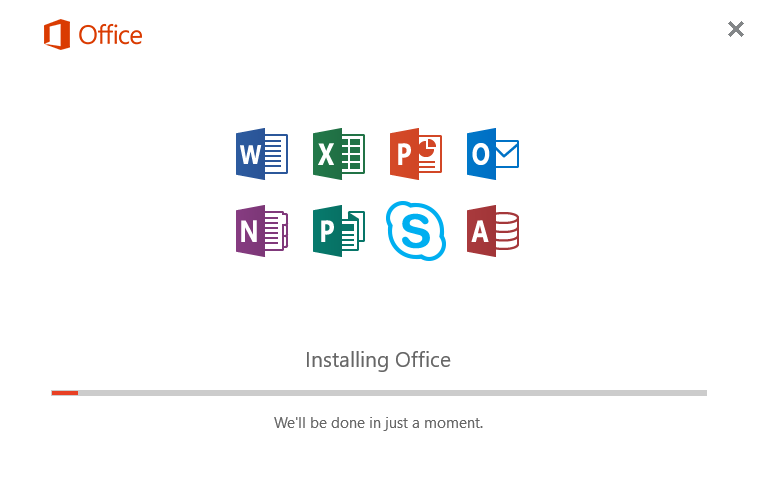
13. Installing Microsoft Office, do not turn off the computer.
14. Installation is finished
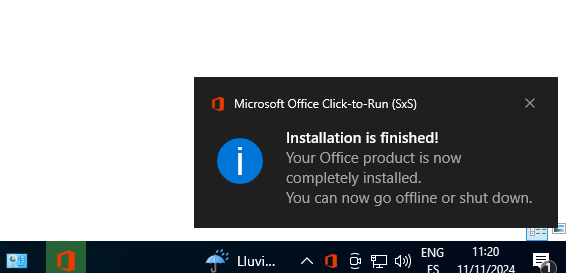
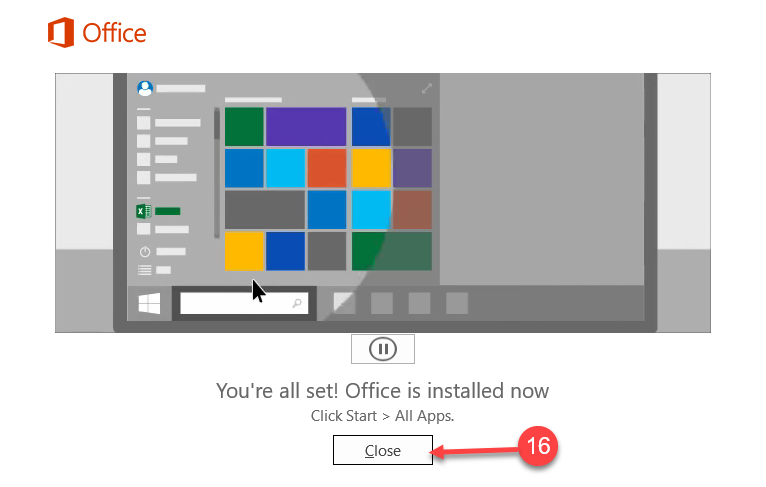
15. Congratulations, Microsoft Office has been installed in your computer. Click on Close
Activating Microsoft Office
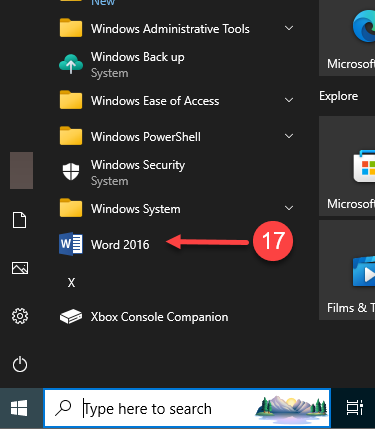
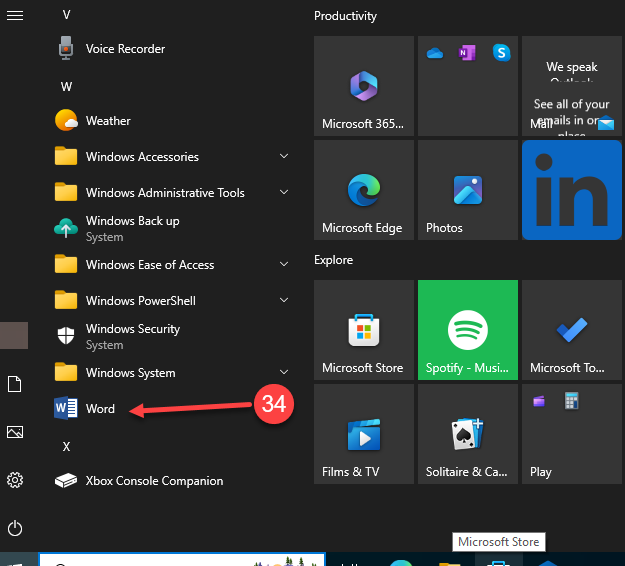
- Click on the Start Menu in Windows, then search and click on Word
18. Click on Back in Product Key pop up window
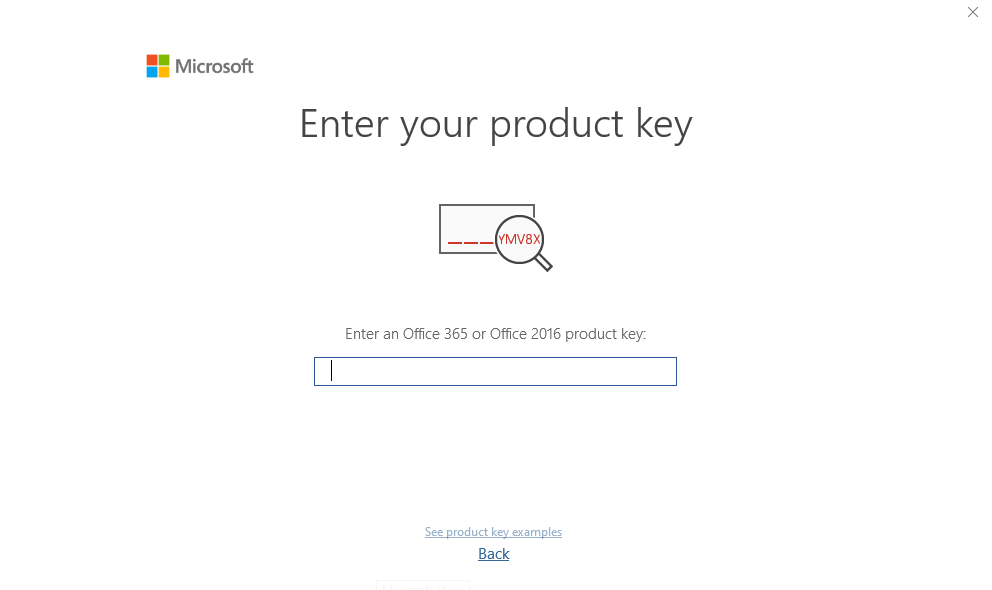
19. Check your email and located the invoice from us containing your product key. Copy the product key.
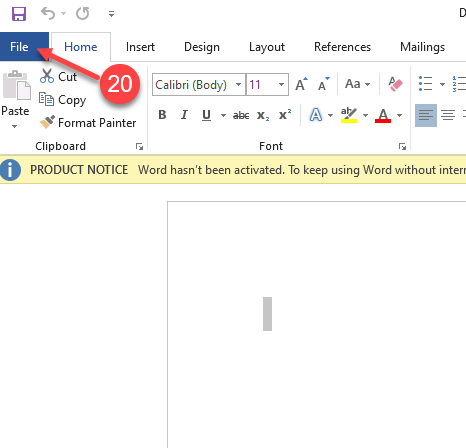
20. Click on File
21. Click on Account, then on Activate Product Button
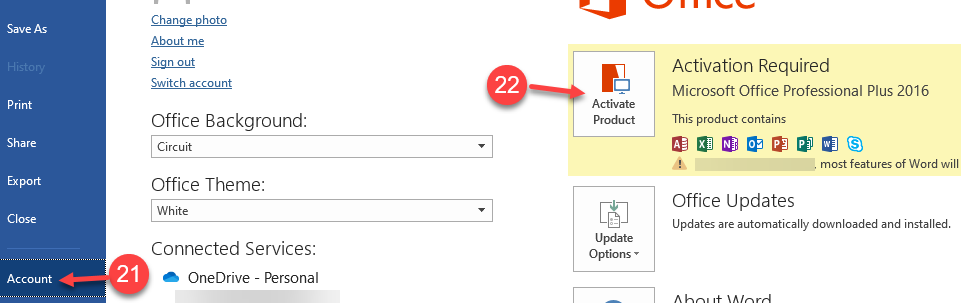
22. A pop-up window will appear, prompting you to enter the Product Key sent to your email. Copy and paste the key into the designated field, then Click on Redeem Online
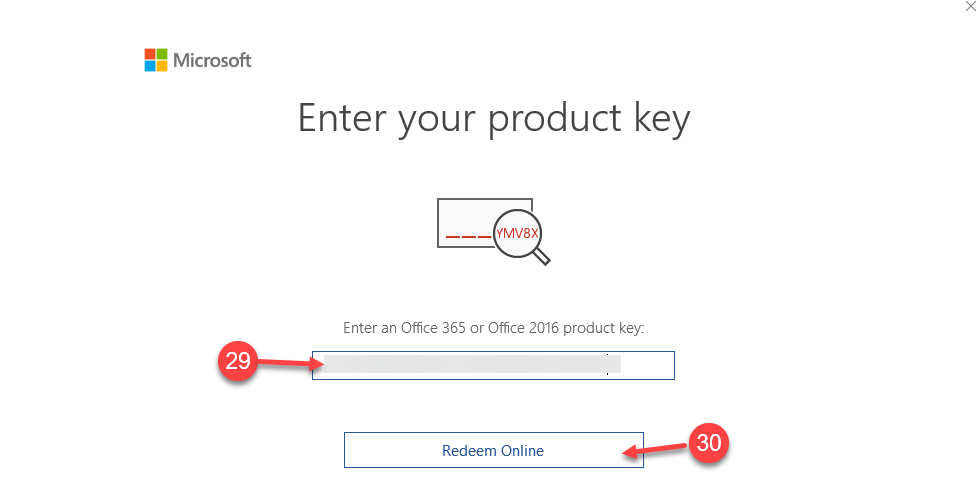
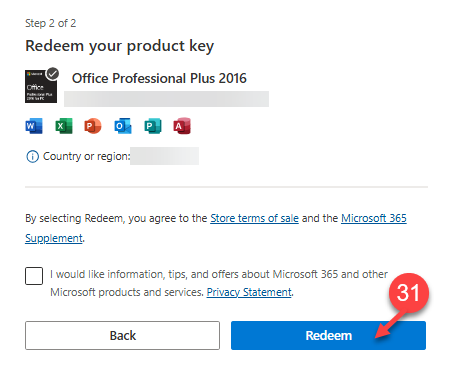
23. Click on Redeem
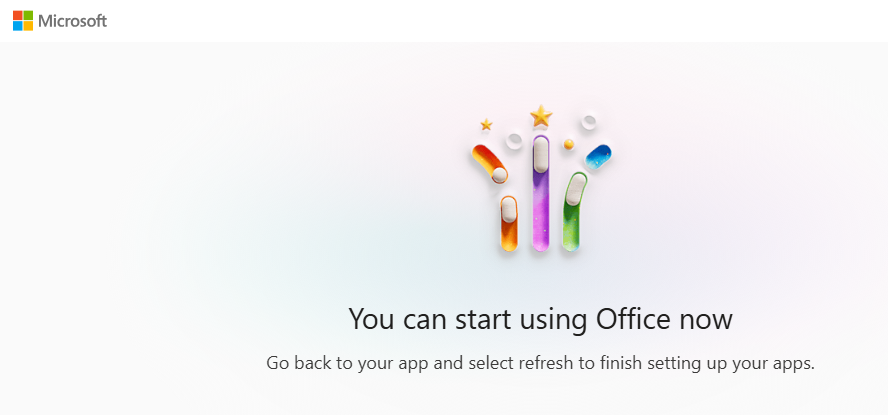
24. You can start using Office now
25. Click on Accept and start Word
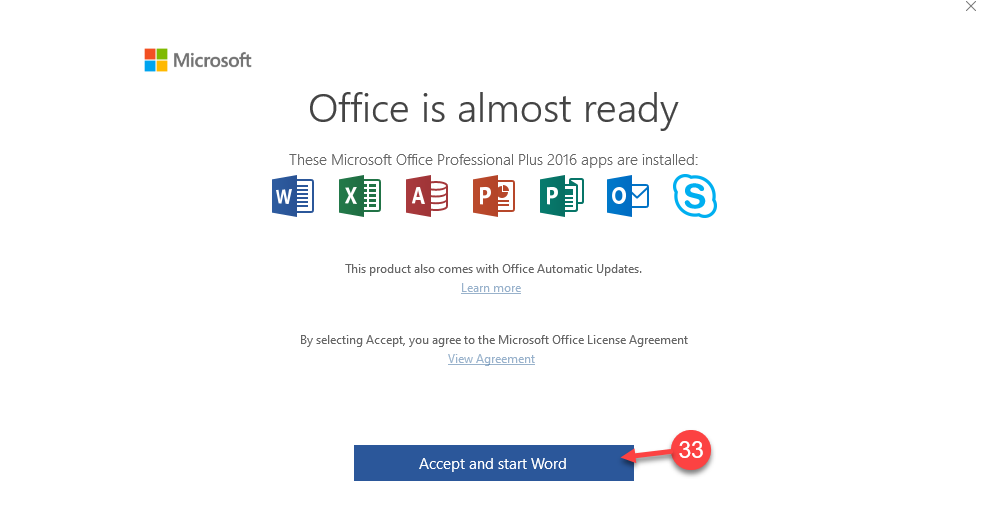
26. Click on the Start Menu in Windows, then search and click on Word
27. Click on File
28. Click on Account and check if in the right side of the Screen there is the title Product Activated
Enjoy your product
If there are any further problems with the installation or activation, please write to us. Simply use our Support form and send a screenshot of the error message at the same time. We are happy to help you.
Your WholesaleKeys.Club Team